 PUSH STARTHome
Automotive CRM features
The whole automotive shop, connected.
See what your team can do from the first inquiry through the finished job: track the customer and vehicle, quote and schedule work, manage materials, invoice, communicate, and understand how the shop is performing.
One connected job
The next step keeps the last step's context.
A lead can become an estimate, a booking, and an invoice without rebuilding the customer and vehicle record each time.
- 01
A request comes in
Capture a lead or booking with the customer's contact details, vehicle, service, source, and notes.
- 02
The shop prepares the work
Use your service menu to quote the job, send the estimate, and find a place on the calendar.
- 03
The team gets it done
Keep the assigned work, vehicle, materials, and customer conversation attached to the job.
- 04
The business sees the result
Invoice the work, record expenses and payments, then review revenue and shop activity.
Shop command
Start with the work happening today, then open the record behind any number or appointment.
Explore the tools below ↓
Dashboard
See the day's bookings, incoming work, revenue, and key shop activity without jumping between separate systems.
Booking calendar
Open an appointment to see its customer, vehicle, services, schedule, status, and assigned work.
Shop availability
Set closures and unavailable time so the calendar reflects when the shop can actually take work.
My profile
Keep your account details and shop access together as you move between devices.
Shop workspaces
Keep each shop's records, team memberships, locations, and settings separate.
Customers & sales
Keep the person, vehicle, conversation, and sales opportunity connected from the first contact.
Explore the tools below ↓
Lead pipeline
Track new inquiries, sources, requested services, status, assigned salesperson, notes, and follow-up activity.
Customer profiles
Find contact details, notes, linked vehicles, appointments, estimates, invoices, and service history together.
Vehicle records
Keep year, make, model, VIN, plate, and vehicle history attached to the right customer.
VIN camera scanner
On iPhone or iPad, point the camera at a VIN barcode to capture the number and decode vehicle details.
Estimates
Build a quote with customer, vehicle, services, add-ons, line items, and the price before sending it for review.
Customer approval
Track estimate status and connect accepted work to the schedule and invoice workflow.
Pricing audit
Review service prices and spot gaps or inconsistent pricing across the menu.
Ad lead intake
When configured, bring incoming social advertising leads into the same follow-up workflow.
Services & scheduling
Build the menu once and use it while quoting, booking, and planning the day.
Explore the tools below ↓
Service catalog
Organize detailing, tint, coating, repair, and other work by category, price, duration, and availability.
Vehicle-aware pricing
Set service pricing for different vehicle types and keep descriptions and timing consistent.
Add-ons
Offer reusable extras while building an estimate or booking instead of rewriting the same items.
Bookings
Schedule the service, customer, vehicle, time, and assigned team in one connected appointment.
Booking review
Review requests and appointment details before work is placed on the shop calendar.
Public booking
Let customers request appointments through a separate booking experience; they do not need a Push Start app account.
Money & reporting
Follow the financial side of the job without losing the customer and vehicle context.
Explore the tools below ↓
Invoices
Create and edit invoices tied to customers and work, track payment status, and resend or export records.
Deposits and payments
Record payment activity and use connected payment or deposit options when those accounts are configured.
Expenses
Record shop costs so they sit alongside sales and bookings in the operating picture.
Reports
Review revenue, bookings, expenses, inventory, and customer activity over the period you choose.
Receipt settings
Choose the business details and branding that appear on customer-facing receipts.
Fiscal-year settings
Align financial reporting with your shop's operating and tax calendar.
Inventory & commerce
Know what the shop sells, what it uses, and what needs to be replenished.
Explore the tools below ↓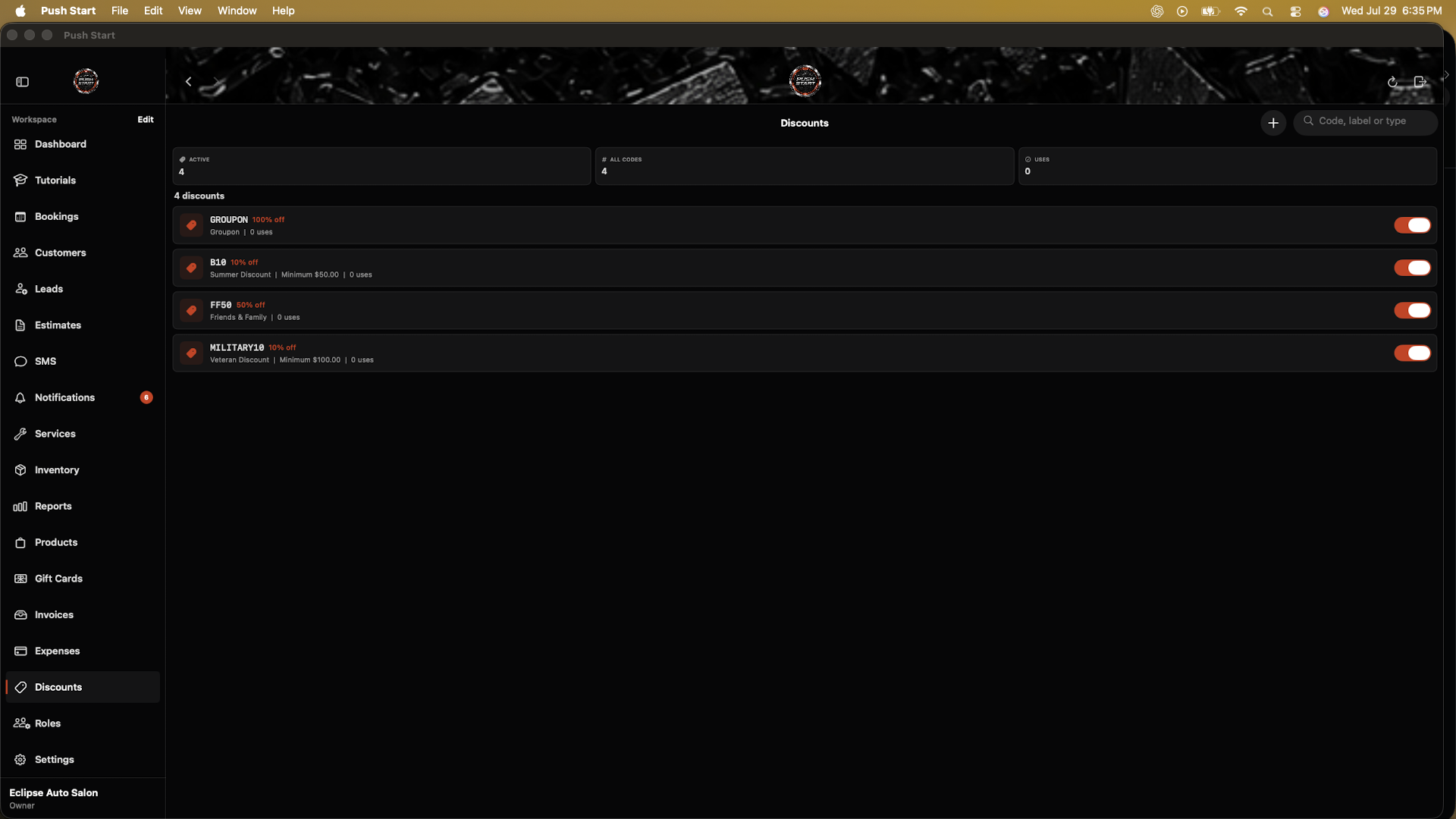
Inventory
Track on-hand quantities, variants, unit costs, usage, and low-stock needs.
Materials on jobs
Connect film, chemicals, parts, and other materials to the bookings that use them.
Products
Organize retail items, categories, options, and availability for the shop and online catalog.
Gift cards
Issue and track gift-card balances and redemptions.
Discounts
Create offers with rules for eligibility, expiration, and usage.
Online shop
When configured, customers can browse products and complete checkout through a separate public storefront.
Communication & control
Give the right people the right access and keep customer follow-up in the shop record.
Explore the tools below ↓
SMS conversations
Read and respond to customer messages beside the related lead, booking, or customer record when texting is configured.
Templates and campaigns
Reuse approved text, send targeted messages, and keep campaign work organized.
Reminders and follow-up
Configure customer confirmations, appointment reminders, and lead follow-up workflows.
Users and roles
Assign access for owners, managers, sales staff, other team members, and installers based on responsibility.
Imports and exports
Review field mapping and duplicates before bringing existing data into your private shop workspace.
Shop settings
Manage branding, public booking details, operating settings, and account preferences.
In-app tutorials
Give staff a place to learn common setup and daily-work tasks inside Push Start.
Access depends on your assigned shop role. Public booking, online commerce, texting, ad-lead intake, and payment options require the relevant shop setup or connected accounts.